How to find your Metricool user ID, blog ID and API token
Metricool's API needs three values — an API token, your user ID and a blog ID per brand — and only one of them sits behind a labeled button. The user ID lives in your browser's address bar. Here's where each one is, in about two minutes.

Anything that talks to Metricool from outside — a script, a scheduler, a reporting tool, VidVertex — authenticates with the same three values:
- API token — your account's key. One per account.
- User ID — a number identifying your account. One per account, rides along on every API call.
- Blog ID — a number identifying one brand (one set of connected accounts). One per brand.
Metricool's own docs are thin here, and the user ID isn't shown anywhere in the interface. It is, however, in plain sight once you know where to look.
The user ID: it's in the URL
- Open app.metricool.com in a normal browser (not the mobile app) and log in.
- Click into any of your brands.
- Look at the address bar. The URL ends with something like:
https://app.metricool.com/…?blogId=1234567&userId=2345678
The number after userId= is your user ID. It's the same number no matter
which brand you open — it identifies the account, not the brand.
The blog ID: one per brand — don't swap the two
The number after blogId= identifies the brand you currently have open
("blog" is a leftover from Metricool's blog-analytics beginnings). Every
brand has its own; click through your brands and you'll see the blogId
change while userId stays put.
That's the failure mode to avoid: both are plain numbers, and an API call with them swapped fails in unhelpful ways. Remember it as user = account, blog = brand.
If you'd rather list all your blog IDs in one go, the API does it for you — see the check below.
The API token: Account settings → API
The token has a page of its own:
- In Metricool, open your account settings (avatar menu).
- Open the API section and copy the token.
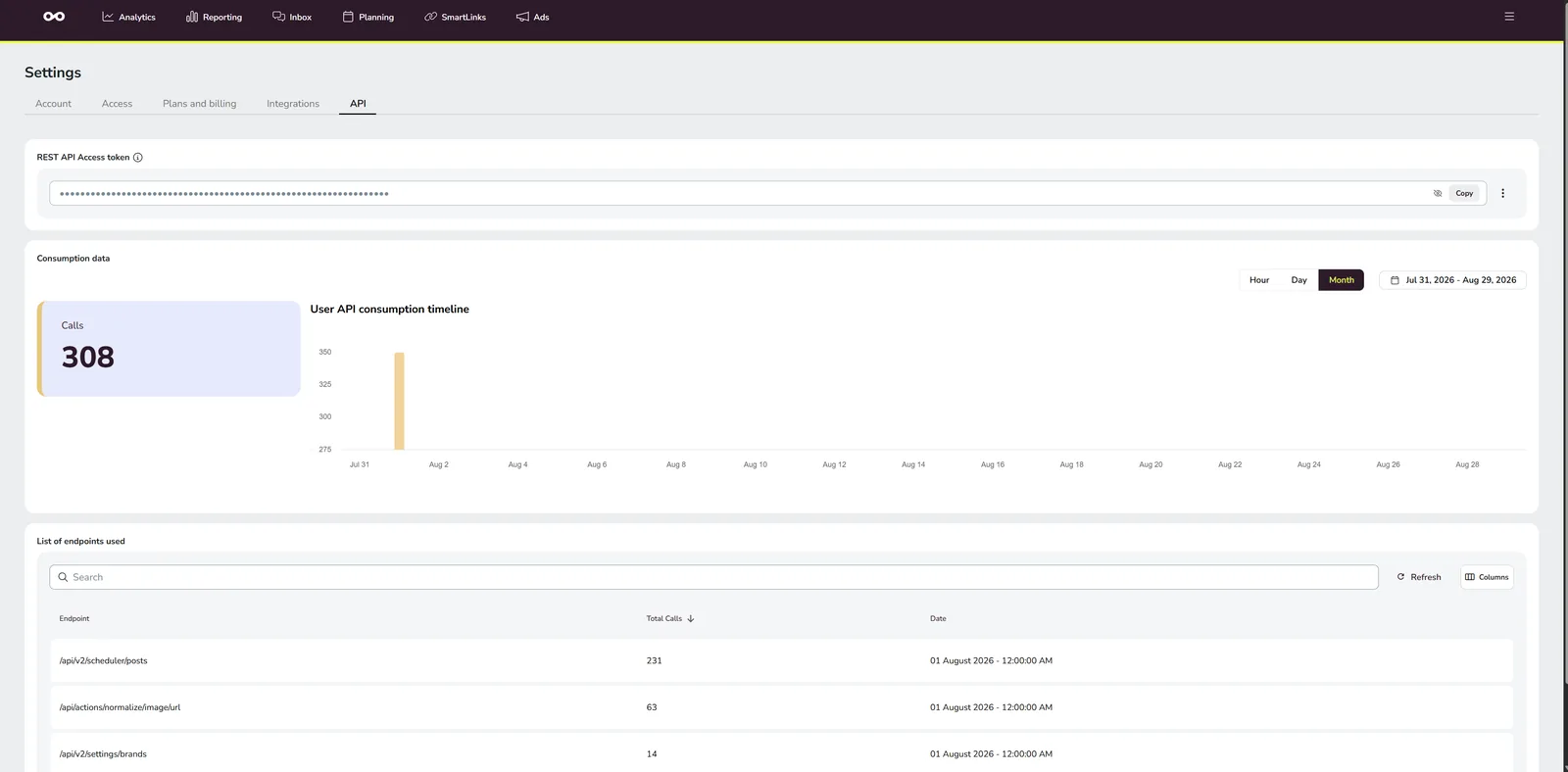
One thing worth knowing before you go looking: the API section only exists on Metricool's Advanced and Custom plans. It's included there at no extra charge — but on lower plans there is no token to find, which is the other reason people search this page in circles.
Treat the token like a password. It grants API access to your whole account — never paste it into shared docs, tickets or screenshots.
The 30-second sanity check
With the token and user ID in hand, one request confirms both work — and returns every brand with its blog ID, so you never have to fish IDs out of the URL again:
curl -H "X-Mc-Auth: YOUR_TOKEN" \
  "https://app.metricool.com/api/v2/settings/brands?userId=YOUR_USER_ID"
That's the whole auth model: the token goes in the X-Mc-Auth header, the
user ID rides as a query parameter on every call, and brand-level calls add
a blogId.
Where VidVertex fits
VidVertex renders a separate short-form video per brand and platform and pairs with Metricool for publishing. It offers two Metricool routes, and both want exactly the three values above (upload modes):
- Metricool API — the app schedules the posts itself, live since September 2026.
- Metricool (Drive + CSV) — the app writes the bulk import CSV for you to import by hand.
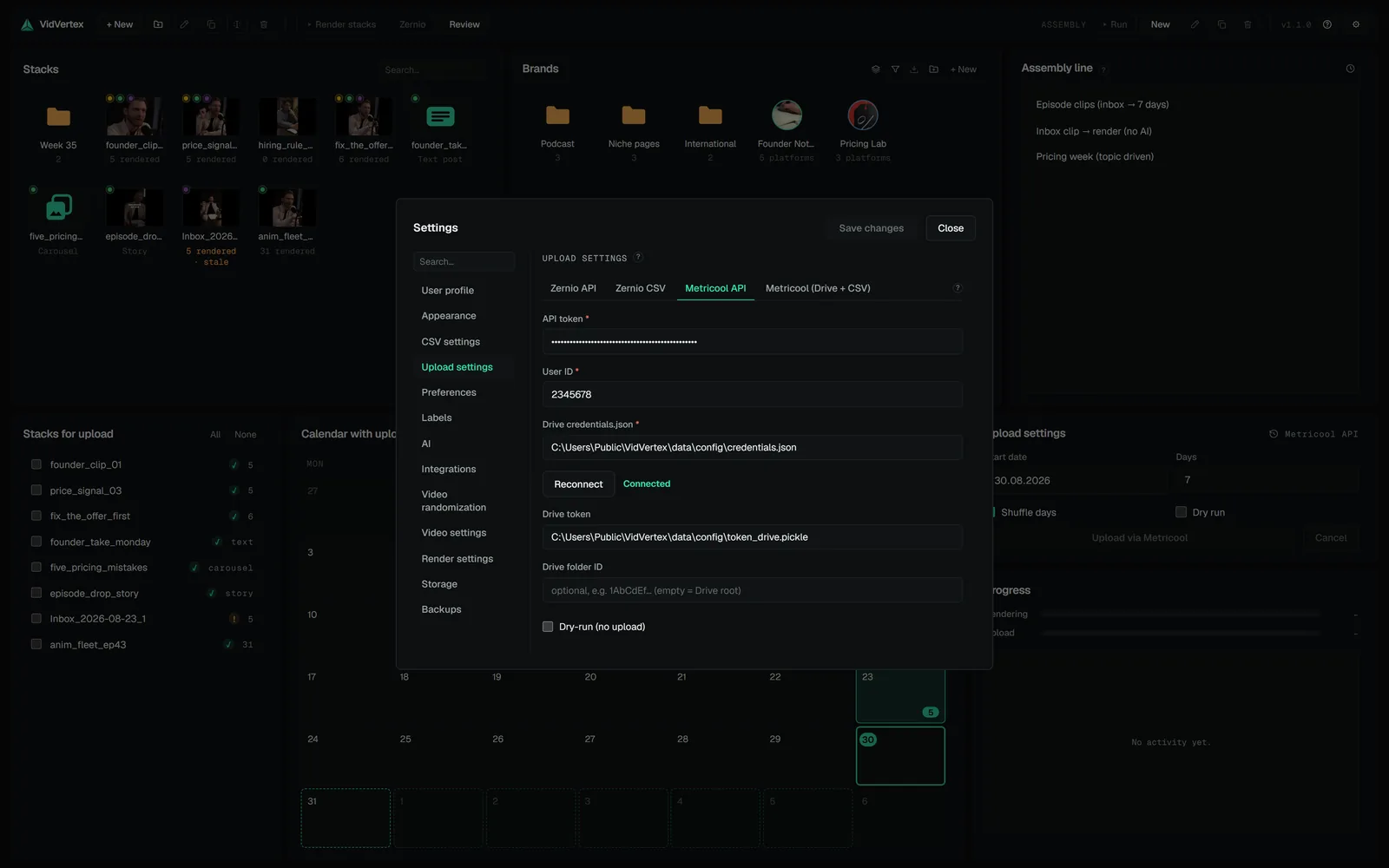
Paste the token and user ID once in Settings → Upload settings and the app does the plumbing you'd otherwise do by hand: the brand editor lists your Metricool brands so each VidVertex brand picks its blog ID from a list instead of a browser URL, and the export CSV carries the exact brand names Metricool's bulk importer matches on. In both routes Google Drive is only the transfer vehicle for the media — Metricool re-hosts every file on its own servers, and in the API mode the app deletes its Drive copy right after that.