The upload modes
Choose the mode in Settings → Upload settings — four tabs, one active at a time. The same plan logic runs in every mode; what differs is where the posts go.
| Mode | Posts for you | Needs |
|---|---|---|
| Zernio API | yes | Zernio key, a Zernio profile per brand |
| Zernio CSV | no — you import | Zernio key for the media, or your own URLs |
| Metricool API | yes | Metricool Advanced plan, token, user ID, blog ID, Drive |
| Metricool (Drive + CSV) | no — you import | Drive connected, a CSV output path |
Zernio API — the direct path, and the only one that needs nothing but a key: paste your Zernio API key, connect each brand to its Zernio profile, done. VidVertex uploads each file, creates the post with its texts and schedules it for its slot. Your social accounts are connected once, at Zernio.
Zernio CSV — no direct posting: the upload plan writes a CSV you import into Zernio's bulk importer, with the media hosted for the import. Media over 4 MB needs a Vercel Token in the settings (without one, large files are compressed hard to fit, or the upload is refused) — or switch on Skip media upload (enter URLs manually) and provide media URLs yourself.
Metricool API — live since September 2026, and part of Metricool's Advanced plan. The Metricool API tab holds API token, User ID, the Drive credentials.json with its Connect button and, optionally, Drive token and Drive folder ID. Each brand additionally carries its Metricool blog ID (Brand editor → Profile) — the Metricool brand its posts go to.
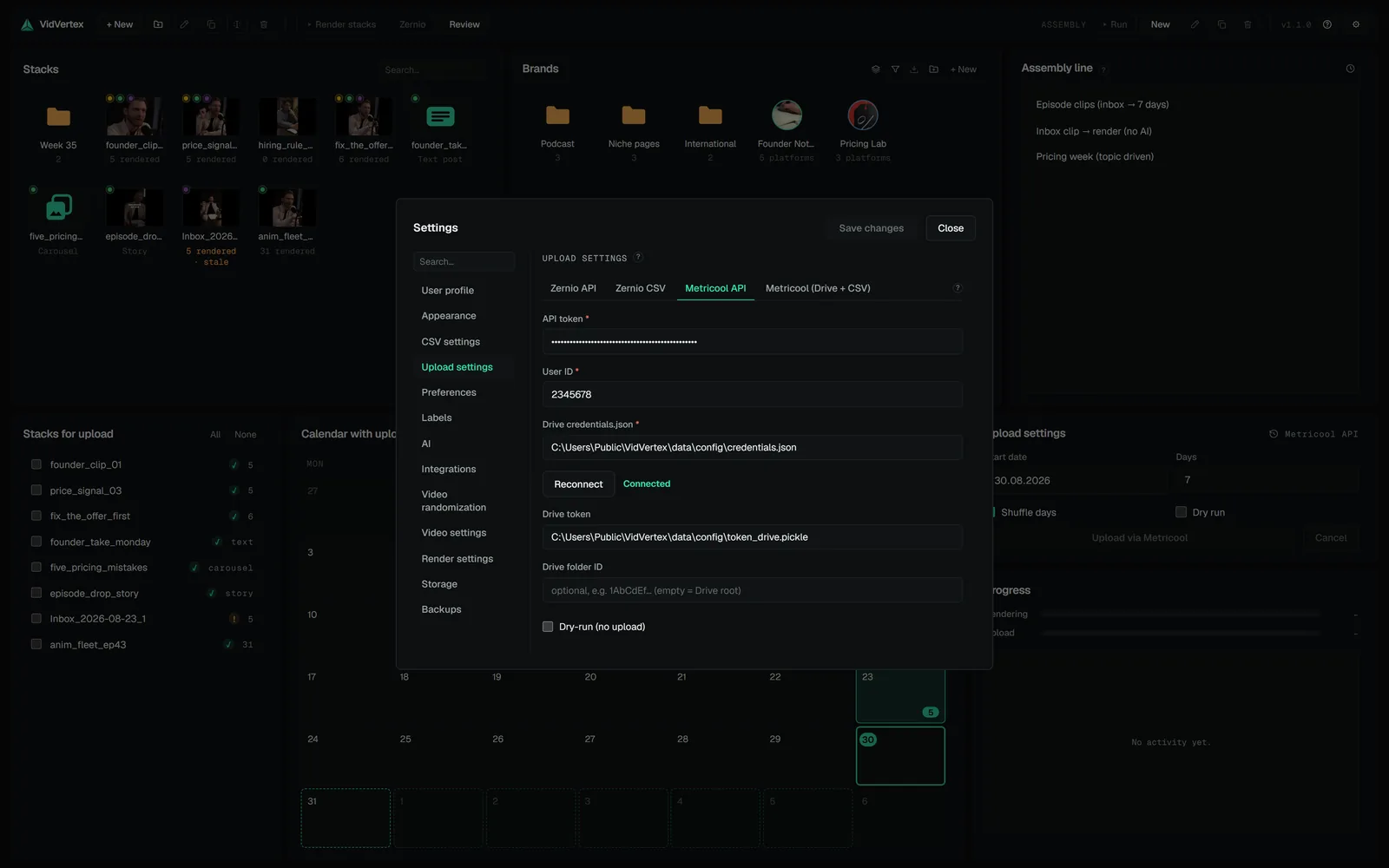
Per post: VidVertex puts the file on your Google Drive, Metricool re-hosts it from that link, the Drive copy is deleted right afterwards, and the post is scheduled against the brand's blog ID. These are real posts — the same ledger, rate limits and review queue as the Zernio API mode.
Two limits of this mode: no cover frame is sent (the API has no documented field for one), and Snapchat is skipped, because Metricool has no Snapchat network.
Where the token comes from: in Metricool, open Settings → API and copy the access token.
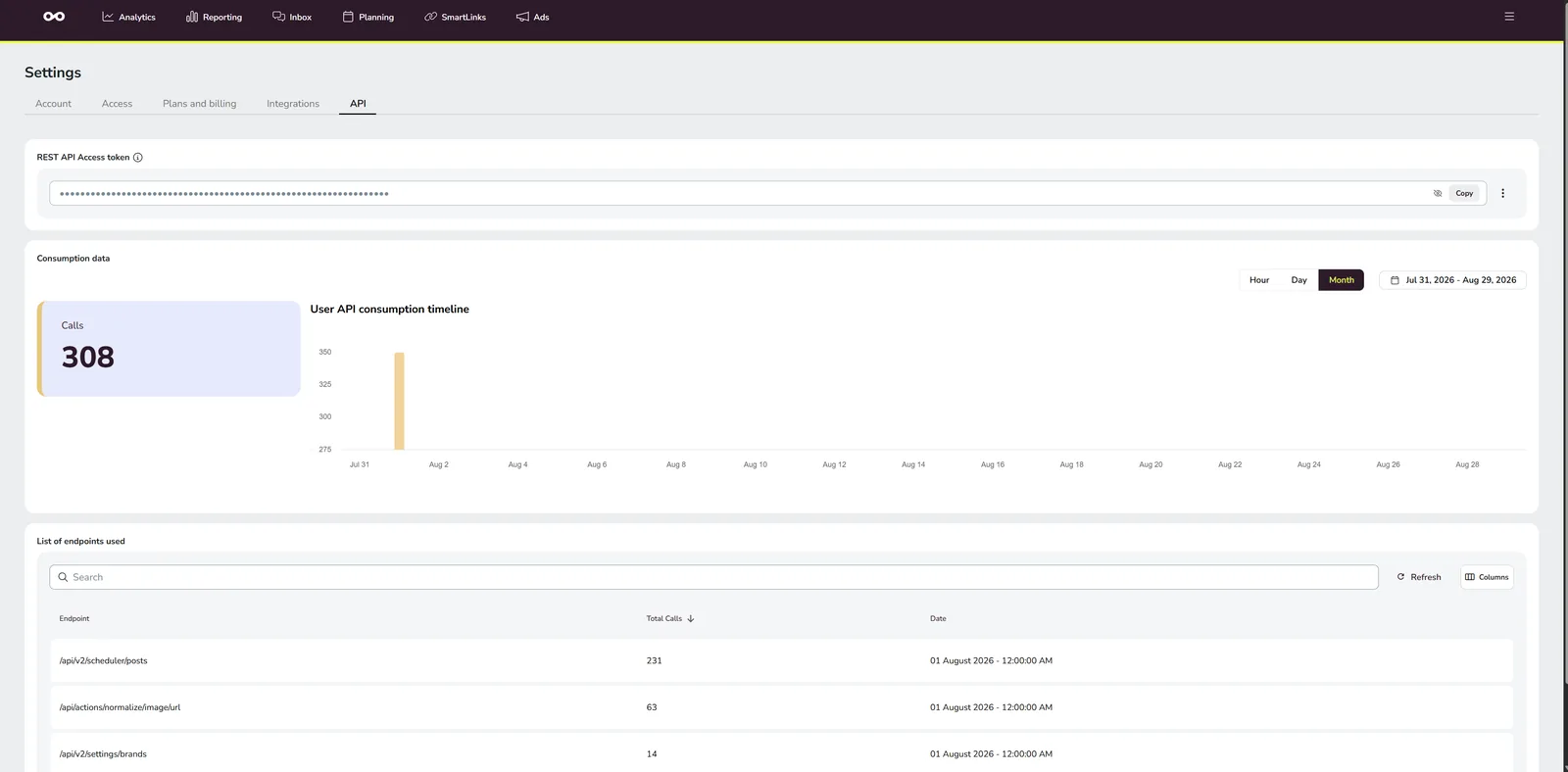
The numeric user ID and each brand's blog ID stand in Metricool's own address bar while that brand is open. Paste token and user ID into the Metricool API tab, and the blog ID into the brand (Brand editor → Profile).
Metricool (Drive + CSV) — Metricool without the API: rendered files are uploaded to your Google Drive as public links and a Metricool bulk-upload CSV is written to Metricool CSV output. You import that file in Metricool's planner. Needs the same one-time Google Drive connection — see Google Drive setup.
The CSV's Brand name column decides which Metricool brand a row imports into, and Metricool matches it exactly. VidVertex resolves it from each brand's Metricool blog ID; where it can't, the column stays empty — the row then lands in whichever brand is active in Metricool's own UI — and the run log says so.
Drive is only the transfer vehicle in both Metricool modes: Metricool copies the media onto its own servers (the API mode when it re-hosts, the CSV mode at import), so the Drive copies are dead weight afterwards. The API mode deletes its copy immediately; the CSV mode's files stay until you remove them under Settings → Storage → Google Drive uploads. A full Drive stops the run with one plain-language message instead of failing every task in the same way, and pre-flight warns when a batch doesn't fit the free space.
Metricool accepts pictures as JPEG or WebP only. A PNG carousel slide or text-post image is converted to a JPEG twin on the way out; the file in your stack folder is never touched.
Dry-run (no upload) at the bottom of the page turns any mode into a rehearsal: the plan is built and logged in full, nothing is posted and no CSV is written for real.