Connect VidVertex
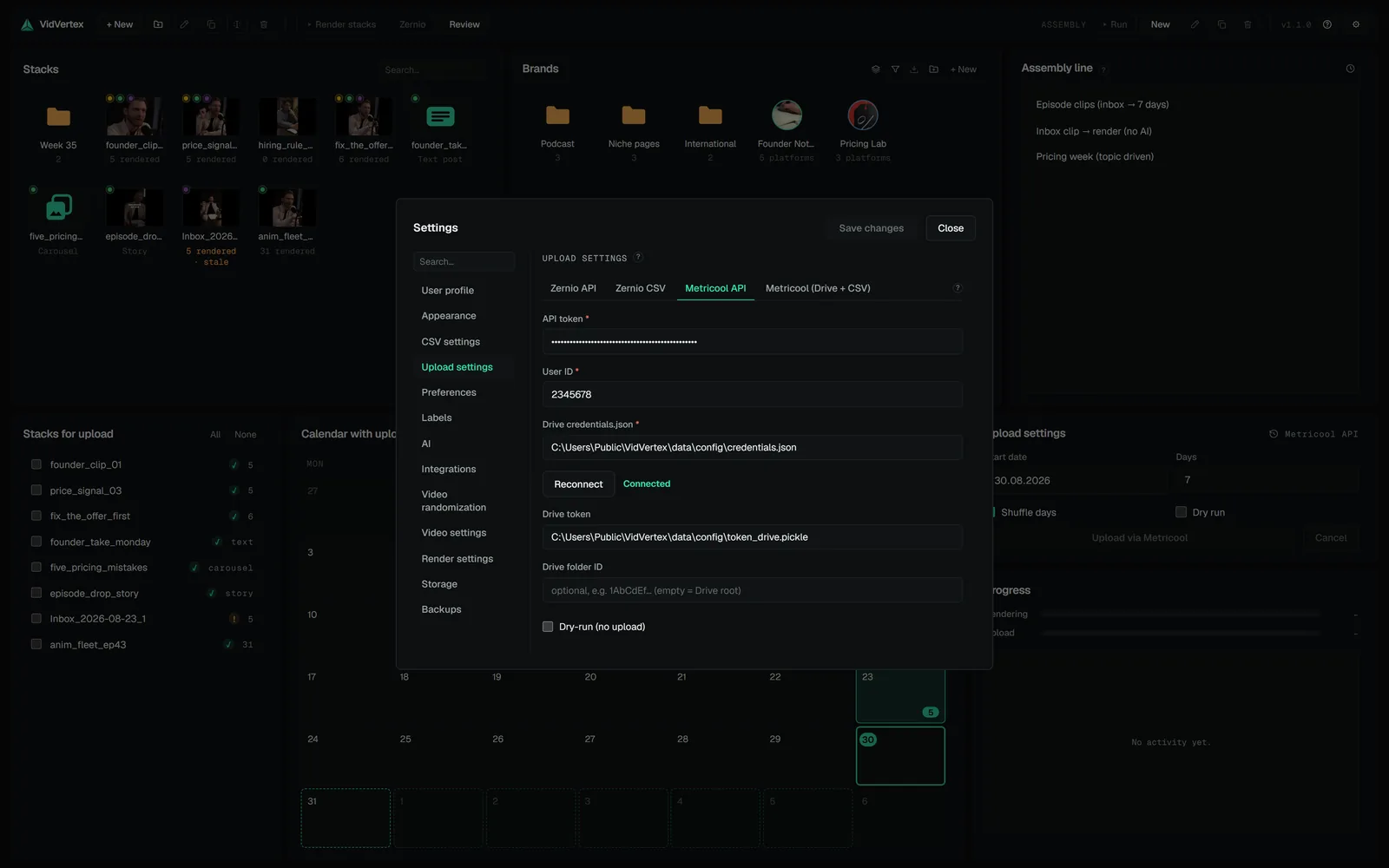
- Settings → Upload settings, tab Metricool API or Metricool (Drive + CSV) — the Drive fields sit on both and share one connection.
- Drive credentials.json → select the downloaded file.
- Connect — a browser window opens on Google's sign-in, you pick the account and allow Drive access. Back in VidVertex the row reads Connected. The token is cached next to the credentials file (the optional Drive token field lets you put it elsewhere) and is refreshed automatically — provided the OAuth client is published (step 1.4). A client left in Testing stops working after seven days.
- Optional: Drive folder ID — the folder the uploads go into (from the folder's URL). Leave empty for the Drive root.
- In the Metricool (Drive + CSV) tab, set Metricool CSV output — where the import CSV is written. Save.
WARNING
This click is yours alone. Assistants, assembly schedules and watch-folder jobs never open the Google sign-in — an upload run started by one of them stops with "Google Drive is not connected" until you have connected once here.