Building an upload plan
On the Upload page:
- Pick stacks — one or many, from the Stacks for upload panel.
- Pick the schedule — start date and window. The calendar is the date picker: click a day to start the window there.
- Run it. A live log shows every post as it's created.
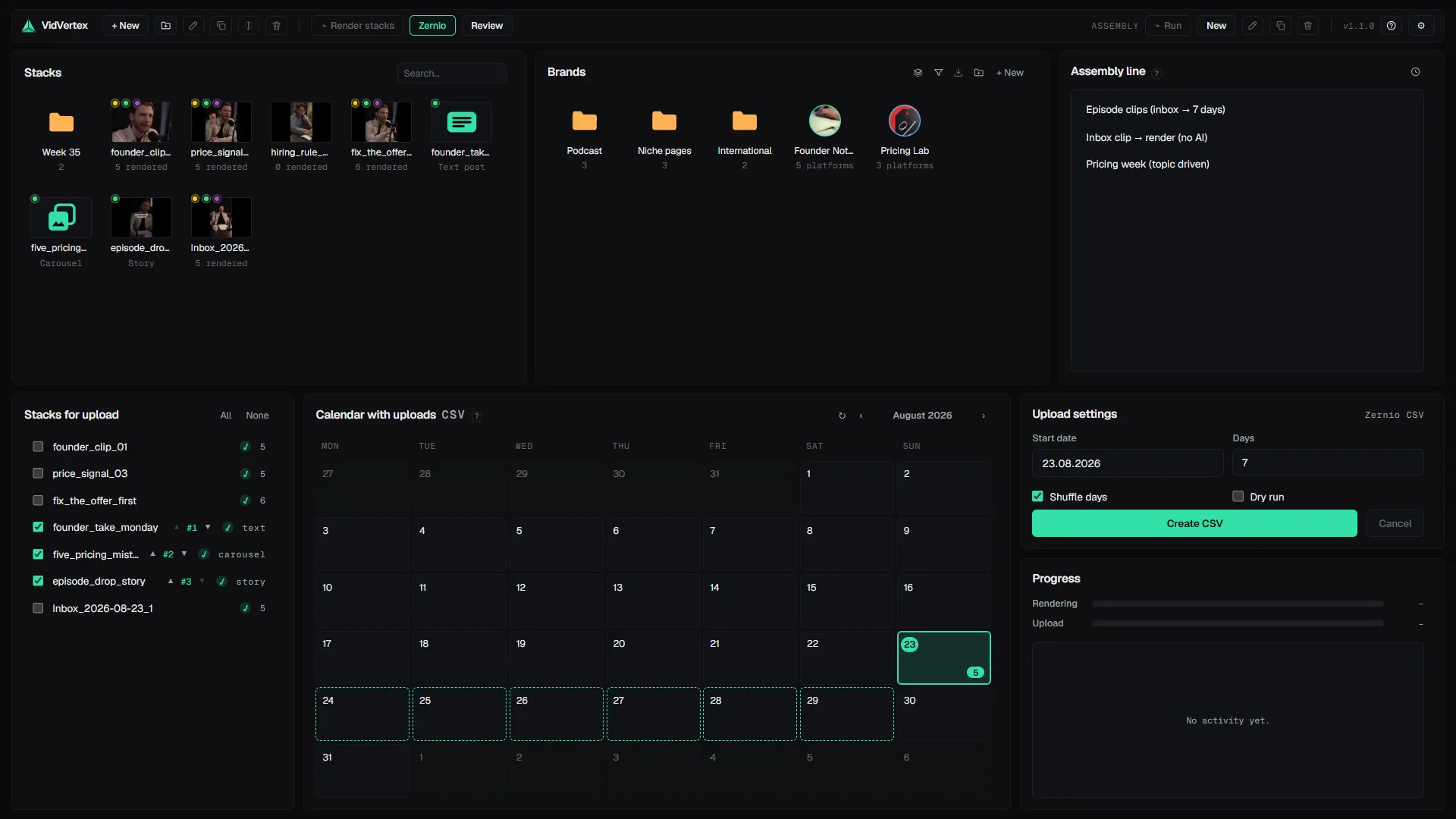
Which stacks are listed
Stacks for upload holds every stack whose content is ready — text, carousel and story stacks need no render. A stack a real run handled leaves the list when that run ends: posted, in the API modes; written into the import file, in the CSV modes. The × that appears at the end of a row when you point at it takes a stack off the list by hand — one you posted elsewhere, or never want in a batch. Hidden · N in the panel head shows both kinds again for a deliberate re-upload; Add to upload list in a stack's menu puts a stack you removed by hand back for good, and for an uploaded one it shows the hidden stacks and selects it.
Dry runs and CSV rebuilds never hide a stack — of all runs, only a real one does.
When each post goes out
The planner spreads the posts over the days of the window, per brand and platform, at most one post per day per brand × platform. Times come from the platform slot table unless the brand has its own: a brand posting time wins, several comma-separated times cycle one per plan day, and Custom times rules pin an exact time per platform and/or post type (a matched rule posts at its time and skips the same-day stagger across platforms).
When the batch is bigger than the window
Ten stacks into a five-day window would normally mean every brand drops the same five. Instead, each brand picks its own subset — least-used stacks first — so brands post different material and every stack lands somewhere once enough brands run; a brand keeps one set across all its platforms (crossposts stay crossposts). Batches that fit the window post completely, as before. The pre-flight summary always shows the real planned count.
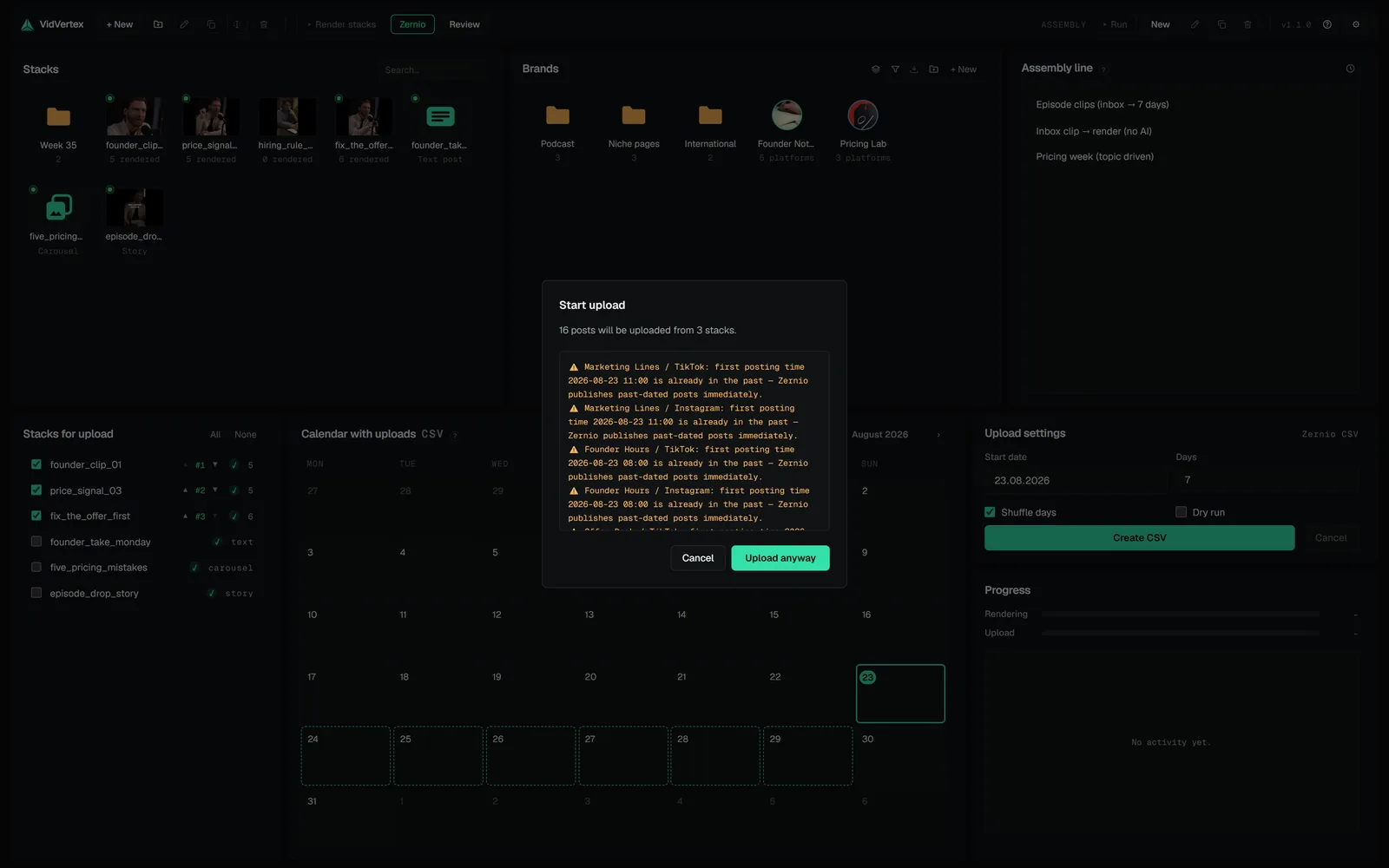 DOCS · UPLOAD & SCHEDULINGPre-flight checksBefore anything goes out, VidVertex shows a summary of everything it noticedDOCS · UPLOAD & SCHEDULINGCover frameA cover moment picked in the editor's render preview rides with the upload, and what happens to it depends on the mode.
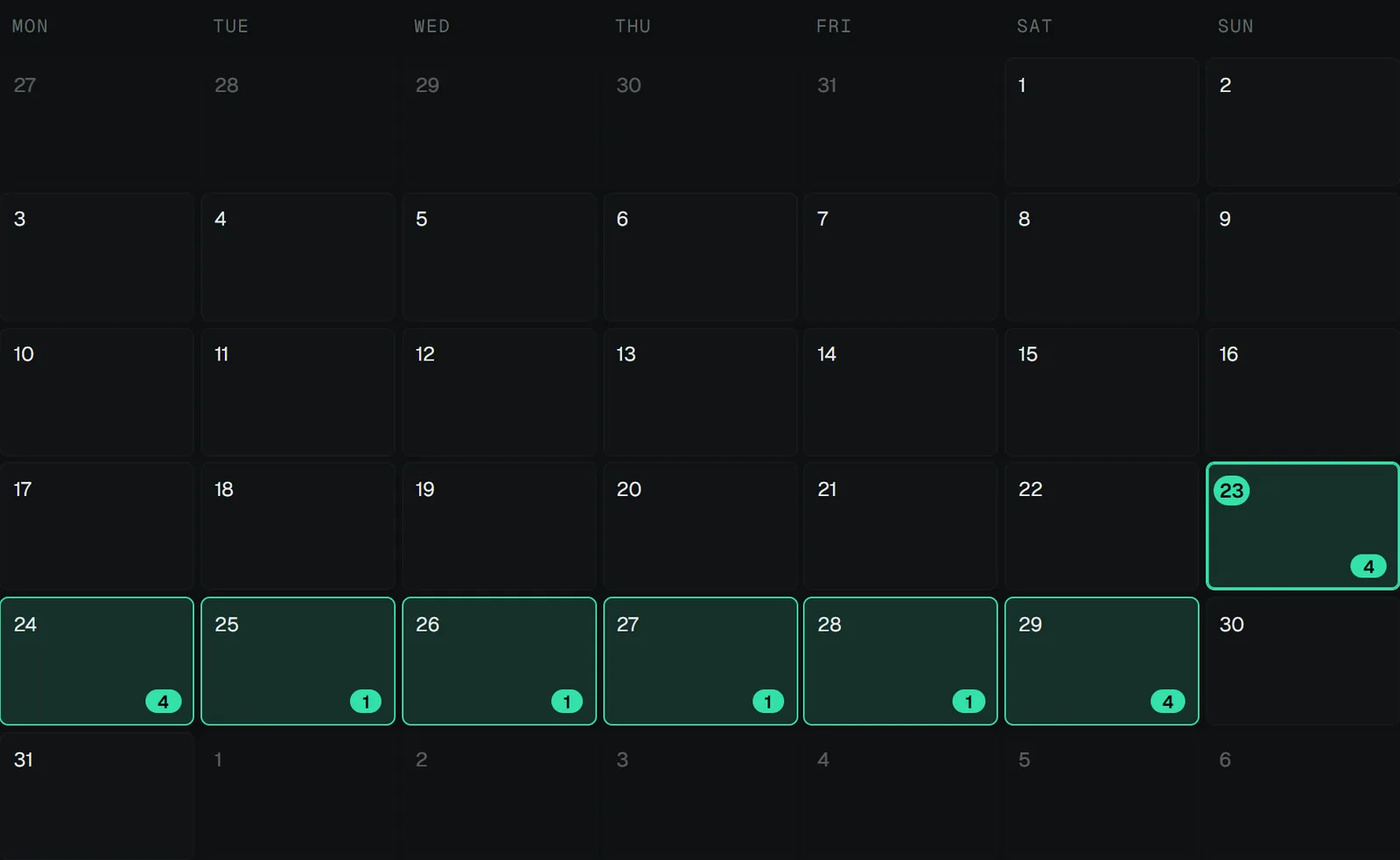 DOCS · UPLOAD & SCHEDULINGThe calendar and upload historyThe Calendar page shows the month per brand and platform: scheduled and already-published posts, each with the status its source reports — including the ones…