Content tab — the briefing desk
The Content tab holds what the stack is about:
- Main content — the clip itself. Assign a file, or pick straight from the inbox folder (newest first — where the free Downloader drops files). On a story stack this card is called Story media.
- The briefing — one topic/briefing field that every AI generator reads (titles, descriptions, first comments, hooks, endcard lines). Write it once, generate everywhere. With clip analysis enabled, the clip itself becomes the briefing — the topic field is then optional.
- Generate row — one-click generation per text kind (needs your AI key).
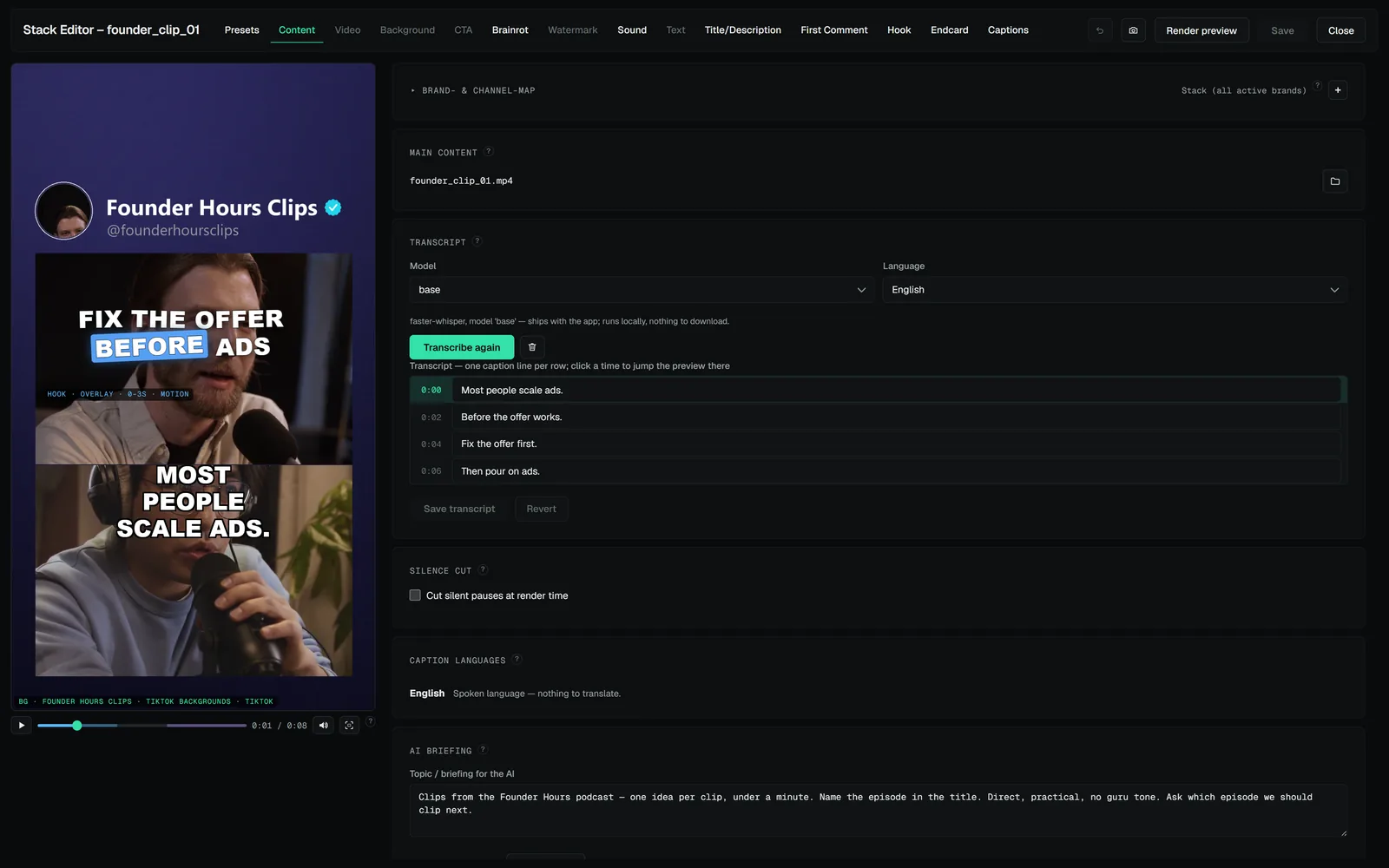
Transcript and speech model
Transcribe now creates the transcript (the button reads Transcribe again once one exists). The Model and Language dropdowns above it choose the speech model, and the line underneath names the backend and where the active model comes from. The editable transcript then lives on this tab — see Captions.
Silence cut
Switch it on and the render trims spoken pauses out of the main clip before compositing — jump cuts, computed from the same word timings the captions use. Set the minimum pause length and the padding kept around speech; captions are re-timed onto the cut automatically. The live canvas doesn't simulate the cut; the render preview shows it exactly.