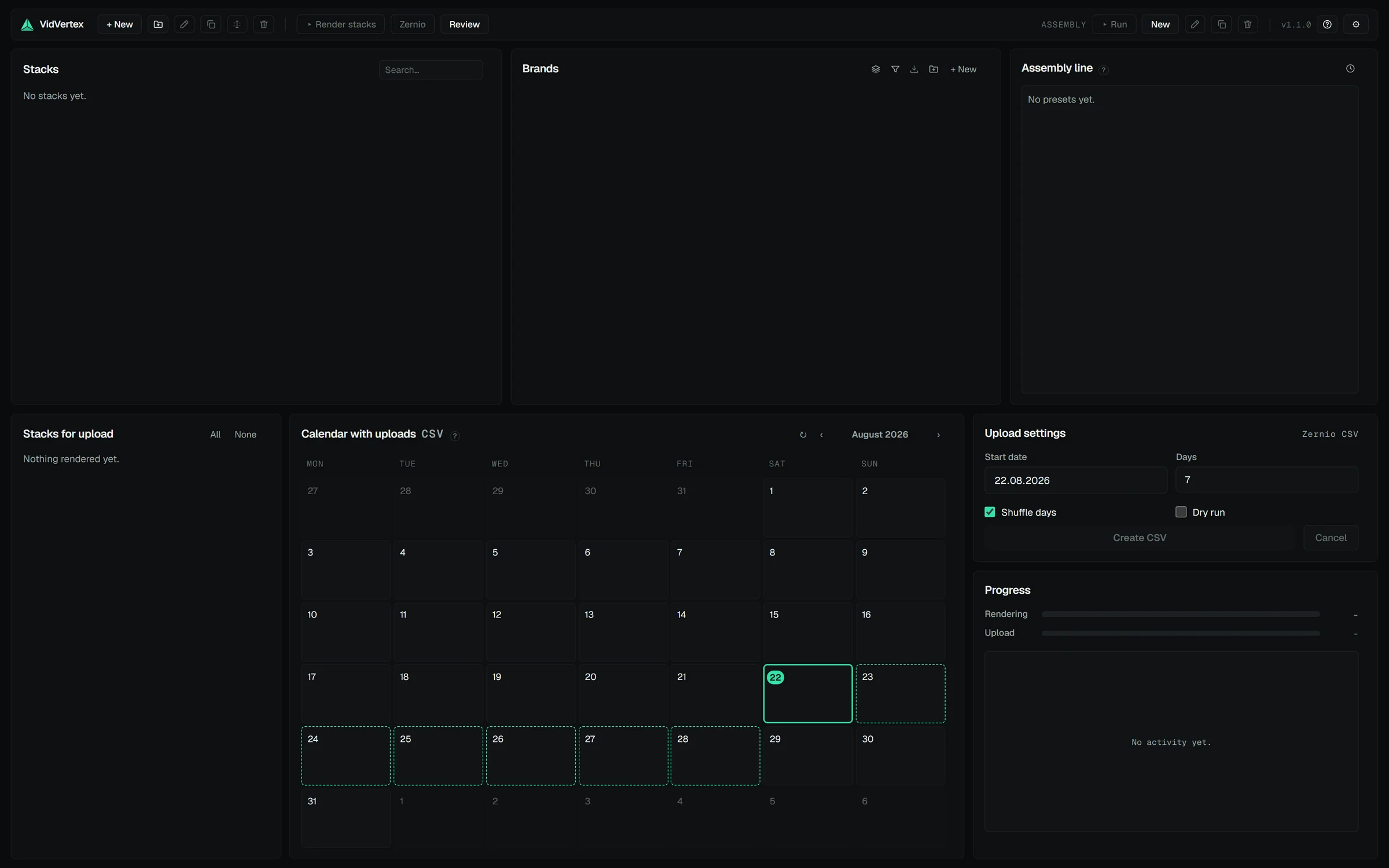
Install
What you'll need
- A Windows 10 or 11 PC (64-bit).
- Your VidVertex license key (from your order confirmation email).
- Short-form footage — any vertical video you have. One clip is enough for this guide. No footage at hand? The free VidVertex Downloader can fetch one from a link (see Downloader).
- For direct auto-posting: a Zernio account with your social accounts connected, or a Metricool account on the Advanced plan. You can finish this whole guide without either and add it later.
1. Install
- Download
VidVertex-Setup-<version>.exefrom the link in your order confirmation email — Lemon Squeezy sends it right after checkout, and the file stays available on your Lemon Squeezy order page. - Run it. The installer is per-user — no admin prompt needed on a normal setup.
- If your PC is missing the WebView2 runtime (rare — Windows 11 ships it), the installer adds it automatically.
- Launch VidVertex from the Start menu.
NOTE
Note on SmartScreen: On first run Windows may show a SmartScreen notice for a newly downloaded installer. Click "More info" → "Run anyway". The installer is exactly the file from your order; when in doubt, re-download it from your order page.
Later versions install themselves from inside the app (Settings → User profile → Software updates, or the "Update" badge in the toolbar) — in place, without touching your data or using a device slot.