Post it
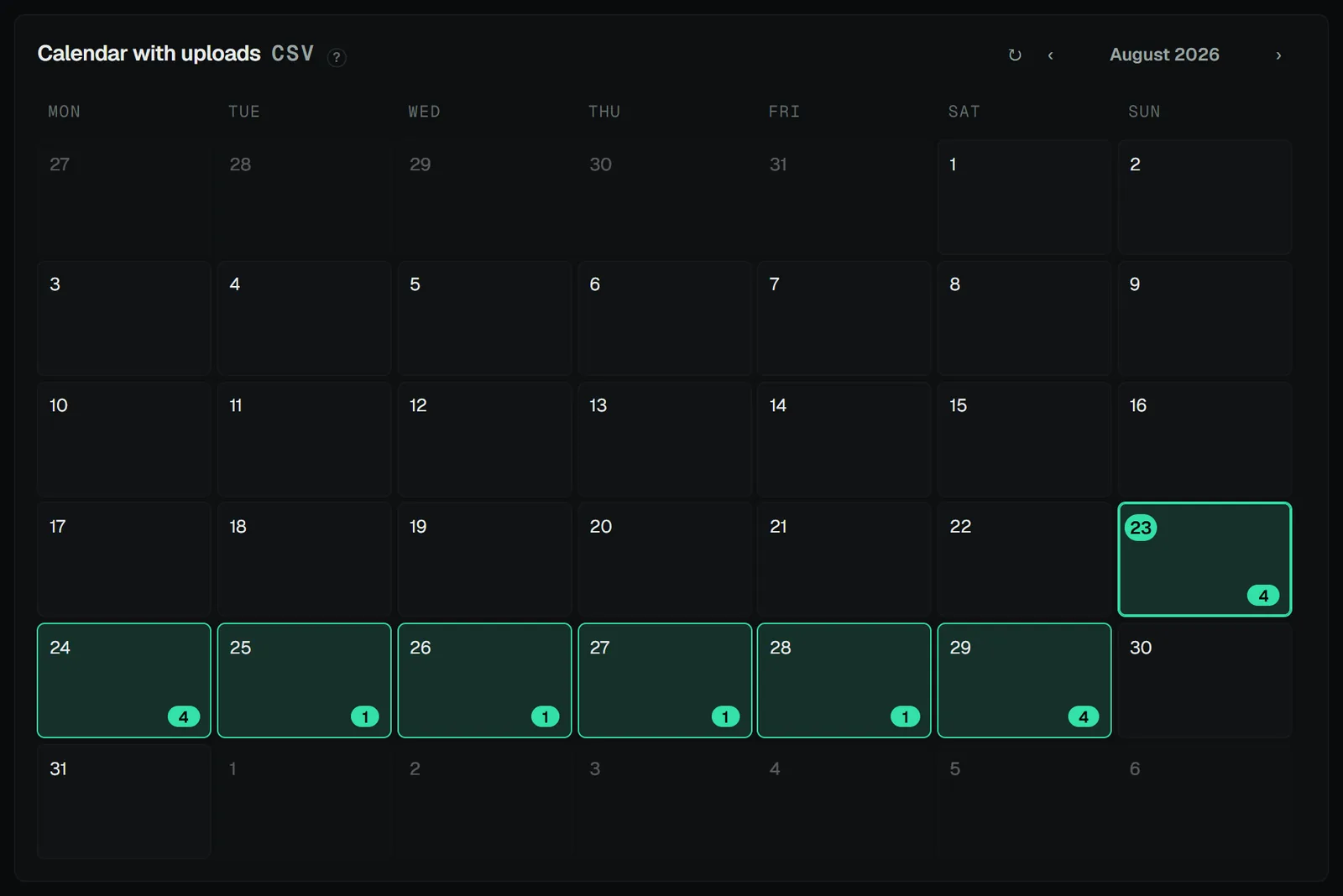
Pick the mode that fits your accounts in Settings → Upload settings — the four tabs there are the four modes. Everything after that is the same upload plan.
Option A — Zernio API (the one-click way)
- In Settings → Upload settings, open the Zernio API tab and paste your API key.
- Make sure each brand is connected to its Zernio profile (done already if you imported them).
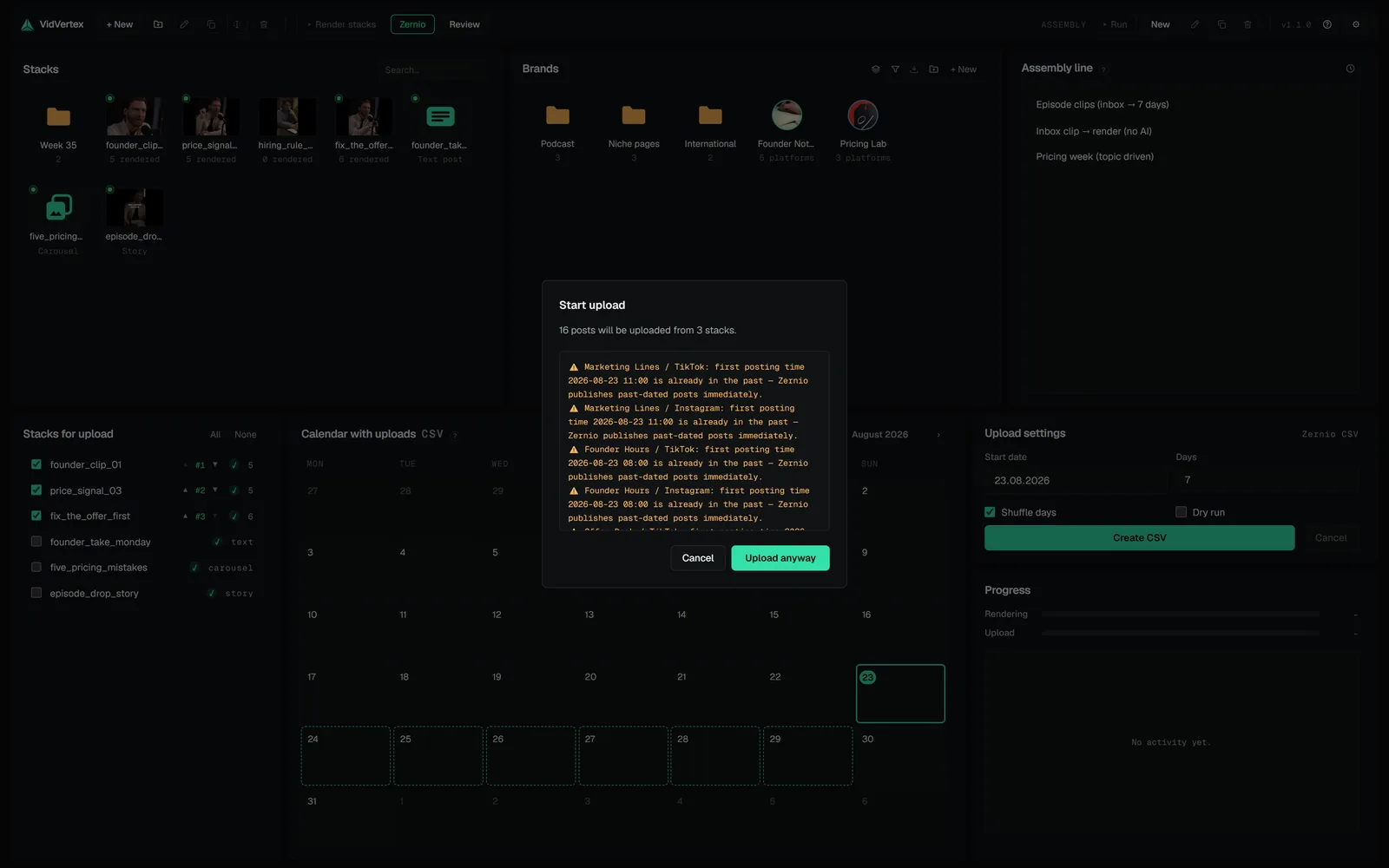
- In the hub's Stacks for upload panel, check the stacks to post. The panel lists what is rendered and not yet uploaded; a stack a real run handled leaves the list. The head toggle Hidden · N brings those back when you want to post one again on purpose.
- Choose the start date and window, then start the plan. VidVertex assigns each rendered file to its brand × platform slot and schedules it.
- Confirm the pre-flight summary — duplicate warnings and platform limit checks. The button reads Start upload, or Upload anyway when there are warnings.
- Watch the posts appear on the Calendar page.
Option B — Zernio CSV
No direct posting: the upload plan writes an import-ready CSV for Zernio's bulk importer. Media over 4 MB wants a Vercel Token in the settings; without one, large files are compressed hard to fit.
Option C — Metricool API
Direct scheduling through Metricool (Advanced plan). Put the API token and User ID in the Metricool API tab, set each brand's Metricool blog ID (Brand editor → Profile), and connect Google Drive — Metricool takes media as a URL, so VidVertex uploads each file to your Drive, hands Metricool the link and deletes its Drive copy once Metricool has re-hosted the file. Snapchat is skipped in every Metricool mode; covers are not sent.
Option D — Metricool (Drive + CSV)
The same Drive hand-off without the API: files are hosted on your Google Drive and a Metricool bulk-upload CSV is written for you to import. Needs the same one-time Google Drive connection — Google Drive setup.
Google Drive is never a publishing target of its own. It is the transfer vehicle the two Metricool modes use to hand media over.
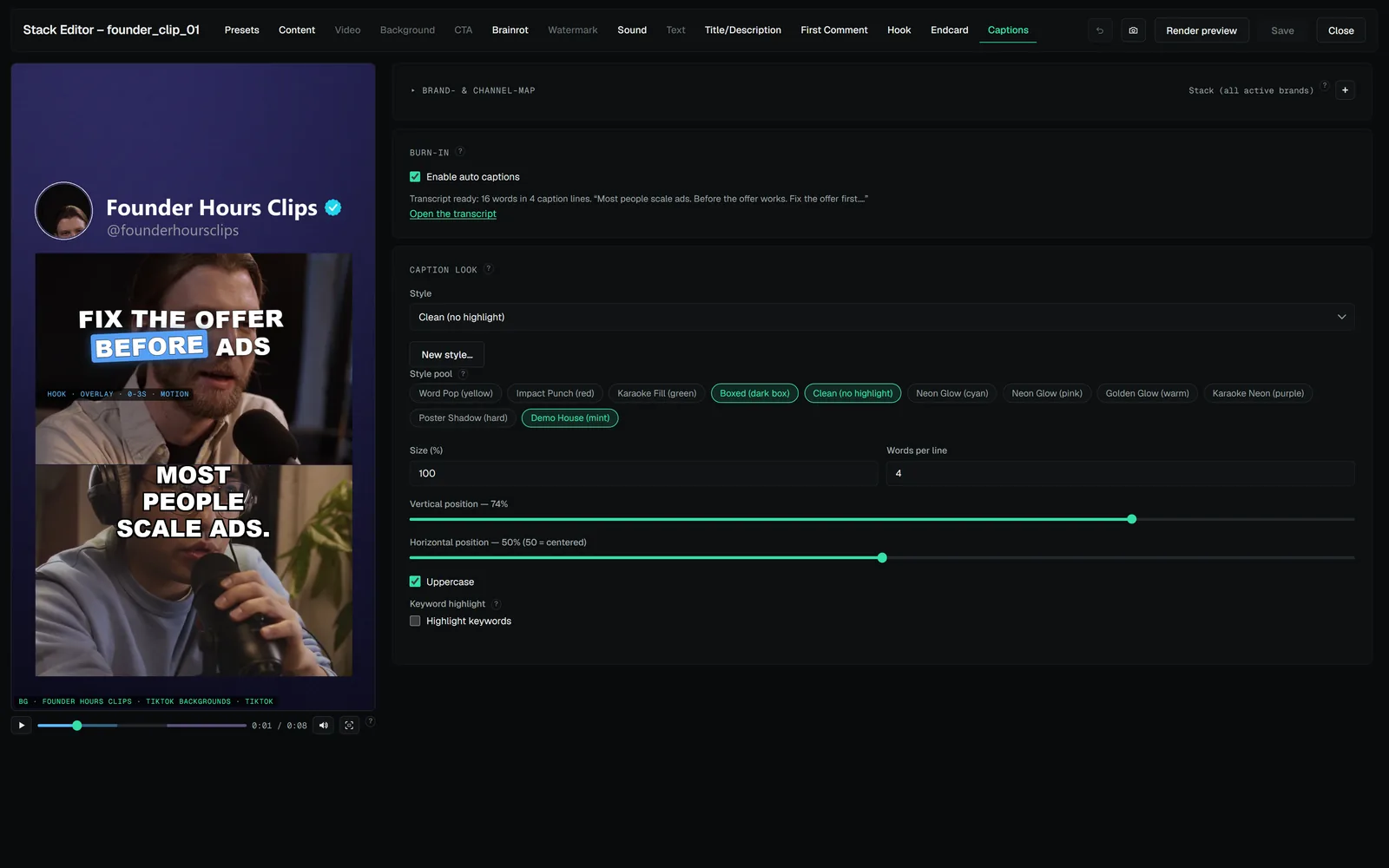 DOCS · GETTING STARTEDBuild your first stackA stack is one post's layout: the clip, what sits around it, the captions and the hook.